

Video Editor & Maker - InShot review
 Analysis by GetAllApps
When I use Video Editor & Maker - InShot, I notice how much of the work happens on a phone screen: trimming a clip, adding a caption, choosing music, and checking the result without moving to a desktop editor. That convenience is also the app’s central accessibility trade-off. A mobile timeline can make editing approachable in short bursts, but small controls and a visually busy preview can be tiring or difficult for some people. My experience is that InShot works best when I keep the project simple and make deliberate use of its preview-and-adjust workflow.
Finding your way around a mobile edit
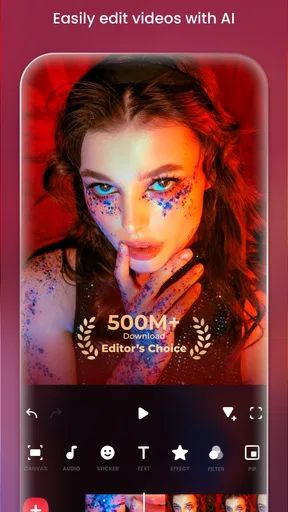
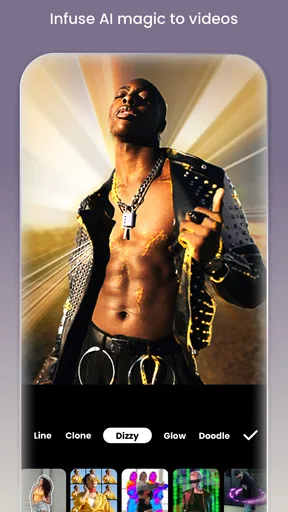
InShot is a free photography app from InShot Video Editor, though its practical focus is making and refining video on a phone. The editing flow is centered on choosing media, arranging it, then applying changes such as effects, music, text, or slow motion. I find that familiar sequence easier to understand than a professional editor with a dense collection of tracks and panels. It gives casual editors a reasonable starting point without requiring them to learn a desktop-style workflow first.
The interface asks you to make many visual decisions, but they tend to be tied to something you can immediately inspect in the preview. That matters for readability: instead of relying on abstract settings alone, I can see whether a crop, caption, or effect suits the footage. I recommend making one change at a time and checking the preview before moving on. This reduces the chance of losing track of which adjustment made a clip feel too busy or hard to follow.
For a first project, I would import a few short clips, trim their beginnings and endings, and arrange them before adding decoration. It is a useful way to learn the editing rhythm without juggling music, titles, and effects at once. If the result feels coherent, I can then add a caption or soundtrack and review the whole sequence. This staged approach is especially helpful for anyone who finds interfaces easier when each task has a clear purpose.
There is a learning curve, even though the basic idea is approachable. Editing on a phone means the preview and controls compete for limited screen space, and a project with many clips can require more careful navigation than a quick social post. I would not expect the interface to feel as spacious as a tablet or desktop editor. The best way to keep it manageable is to decide on the video’s shape and basic sequence early, rather than repeatedly changing direction among tools.
Making controls work for different hands and senses
Touch editing can be convenient when I want to trim a moment right after recording it, but precise finger movements are not effortless for everyone. A narrow timeline or a small adjustment target can make fine edits frustrating, particularly if hand control is limited or the screen is being used one-handed. I get better results by slowing down, enlarging the working area where the device allows it, and making short edits rather than trying to perfect a long sequence in one pass.
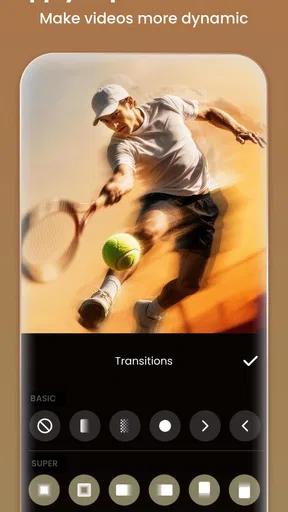
There is also a sensory side to editing. Effects, music, motion, and text can all compete for attention, and a lively result is not automatically an easy one to watch. I try to treat the preview as a comfort check: if transitions feel abrupt, overlays cover important action, or the audio makes speech hard to follow, I simplify. A restrained edit is often clearer than one that uses every available visual flourish. This is a practical choice, not a claim that the app includes specialized sensory settings.
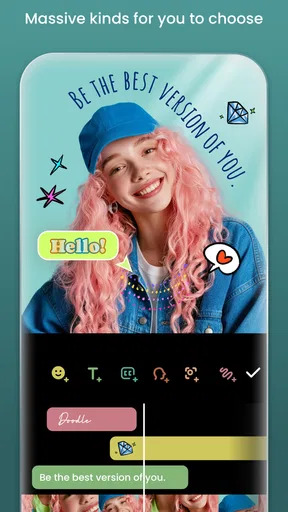
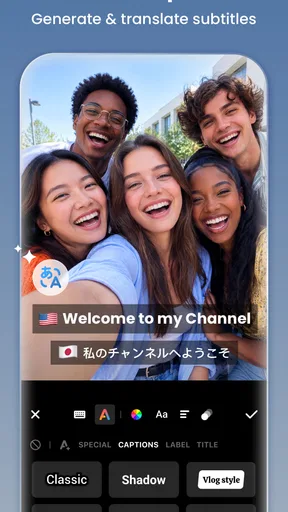
For viewers who rely on spoken content, I would make captions large enough to read against the footage and avoid placing them over faces or important details. I also check that background music does not overpower the voice. InShot lets me work with text and music as part of an edit, but good results still depend on the editor’s choices and on checking the finished video in context. A caption that is legible in the editing preview may be less comfortable on a smaller screen or over a bright, changing background.
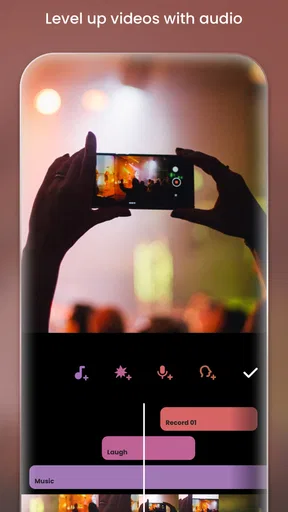
One useful workflow is to finish the visual arrangement first, then listen through the entire piece before adding more sound. That catches moments where a music change or cut makes the video feel jarring. Another is to preview captions over the busiest section of footage rather than only over a plain opening shot. These checks take little time and often reveal problems that are easy to miss while focused on trimming.
Editing around time, place, and device
InShot is at its most useful when an edit needs to happen near the moment it was recorded. Imagine filming a family gathering, then assembling a short recap while travelling home: I can select the best moments, remove pauses, add a title, and choose music without transferring footage to a computer. For a small personal project, that direct route can make the difference between sharing something soon and leaving the clips untouched in a camera roll.
The same immediacy suits a shop owner making a quick product clip or a student preparing a short presentation from phone footage. I would keep those projects focused: a clear opening, a few useful shots, readable text, and an ending that does not linger. The app’s slideshow option can also help when the source material is a set of photos rather than recorded scenes. In either case, a simple plan before editing saves more time than repeatedly trying new effects.
Because the controls and preview share a phone display, the setting matters. In bright outdoor light, small details can be harder to inspect; in a noisy place, checking music balance by listening may be unreliable. I would do rough trimming wherever convenient, then review the full video somewhere quieter and with the screen at a comfortable brightness. That two-stage habit is more dependable than treating a quick preview as a final quality check.
InShot is rated for Everyone, and it is free to download, with optional in-app purchases ranging from $0.99 to $199.99 per item. I would treat the free starting point as a chance to test whether the editing flow suits your hands, eyesight, and typical projects before spending anything. Those purchases are worth considering only if a particular paid option solves a real need for you; the price range is wide enough that checking the in-app choice carefully is sensible.
Where InShot fits—and where it may not
Compared with a basic phone gallery editor, InShot gives me a more focused place to combine clips, music, effects, text, and slow motion. That makes it a stronger fit when I want a short piece with a deliberate sequence rather than a single trimmed recording. Against more advanced video editors, though, its phone-first simplicity is a trade-off: a large project with many layers or detailed revisions is generally easier to manage in software designed around a bigger screen and more elaborate controls.
The app has an average rating of 4.8 from around 25 million ratings, and it has been installed over 500 million times. Those figures suggest that it has broad appeal, but they cannot tell me whether its touch controls will suit a particular person. I would use popularity as context, not as a substitute for testing the interface with the kind of footage and editing tasks I actually do.
Its release date was March 5, 2014, and the current version is 2.243.1555, with Android 8.0 as the minimum operating system. Those details matter if you are checking whether an older Android device can run it. They do not guarantee that editing will feel smooth on every compatible phone, so I would start with a short project before committing to a long montage or an important deadline.
Some users will be better served by a different approach. If precise editing with many tracks is central to your work, a desktop editor offers more room to see and manipulate a complex sequence. If touch accuracy is a major obstacle, editing on a larger device or using tools with controls that better suit your needs may be more comfortable. And if you only want to remove the start and end of a clip, the phone’s built-in editing tools may be enough without learning another app.
A practical inclusive verdict
For me, InShot is a capable everyday editor when speed and convenience matter more than a spacious, highly detailed workspace. Its visual preview helps make edits understandable, and its mix of video, slideshow, music, effects, and slow motion covers many casual projects. I especially like the idea of using it in small, reviewable stages: trim first, arrange second, then add only the text and sound the video needs.
Its accessibility in practice depends on the person and the situation. Someone comfortable with touch controls and visual editing may find the workflow approachable; someone who needs large targets, extensive precision, or a quieter and less crowded editing surface may run into friction. I would not recommend it as a universal solution, but I would recommend trying a short, low-stakes edit before deciding. The app is most rewarding when its phone-sized workflow matches the job, and when the editor takes time to check readability, motion, and sound from the viewer’s perspective.
InShot is a good choice for approachable edits on the go, provided you are willing to keep projects organized and review the finished video with care. If that balance sounds right, its free download makes it easy to explore; if fine control or a more spacious interface is essential, a different editor may be the kinder choice.
Pros and cons
Pros
- Easy-to-use timeline makes trimming and rearranging clips straightforward.
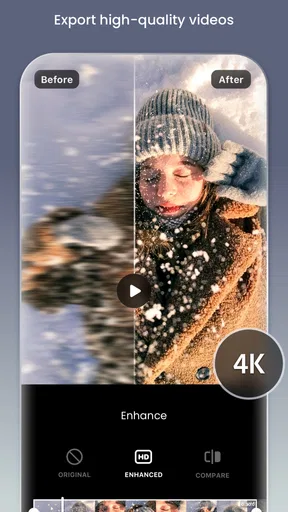
- Exports support common resolutions for sharing on social platforms.
- Includes ready-made canvas ratios for popular social media formats.
- Music and sound effects can be added directly within the editor.
- Works well for quick edits without requiring advanced video skills.
Cons
- Some features and effects require a paid subscription.
- Free exports may include an InShot watermark.
- The app may show advertisements during editing.
- Large projects can take time to export on older devices.
- Some users may find the number of editing options overwhelming.


